Accessing a powerful computer no longer requires purchasing every hardware component yourself. Cloud computing has introduced a different way to use desktop environments, allowing people to connect to remote computers that run applications, store files, and process demanding workloads over the internet.
A cloud computing desktop provides a complete computer environment hosted on remote infrastructure. Instead of depending entirely on a local laptop or desktop, cloud based gaming pc users connect to a cloud desktop PC and interact with its operating system through a supported browser or remote desktop application.
This technology has applications across gaming, remote work, software development, education, and creative computing.
For gamers, one particularly interesting use case is accessing a cloud gaming PC without buying an expensive local gaming machine. Searches for cloud gaming PC gratis also reflect growing interest in playing demanding games without committing to costly hardware or subscriptions.
However, free access, promotional credits, and paid cloud computing services are different things. Understanding these differences can help users choose a solution that fits their requirements and budget.
What Is a Cloud Computing Desktop?
A cloud computing desktop is a remote computer environment that runs on infrastructure managed by a cloud provider.
Rather than performing every computing task locally, users connect to a remote desktop that supplies the operating system, processing resources, memory, storage, and other available features.
The local device acts as the access point. It displays the remote desktop and sends user input to the cloud computer.
A cloud desktop PC can support different activities depending on its configuration:
- Everyday computing: Browsing, document editing, and general desktop applications.
- Remote work: Accessing a consistent workspace from supported devices.
- PC gaming: Running compatible games using remote GPU resources.
- Software development: Working with programming tools and development environments.
- Creative applications: Using compatible graphics and multimedia software.
- Learning: Accessing desktop applications that may require more computing power than a local device provides.
Unlike a basic remote application, a full cloud desktop provides access to an entire computer environment. This gives users more flexibility to manage applications, files, and settings.
How Does a Cloud Desktop PC Work?
A cloud desktop operates through remote infrastructure. The provider provisions the computer, and users connect to it over an internet connection.
The process involves several steps.
1. Cloud Resources Are Provisioned
The provider allocates computing resources based on the selected configuration.
These resources may include CPU, RAM, GPU, SSD storage, networking, and an operating system.
A configuration intended for everyday office tasks may require fewer resources than one designed for gaming or graphics-intensive applications.
2. Users Connect to the Remote Desktop
Once the computer is ready, users access it through a supported browser or desktop client.
The cloud environment runs independently of the local device. This means users can access the same provisioned desktop from different supported computers without having to recreate their entire setup.
3. Applications Run in the Cloud
Applications execute on the remote computer, using its available resources.
For gaming, this means the cloud PC runs the game and streams the resulting audio and video to the user’s device.
For productivity or development, the same desktop can run compatible software and manage files.
4. Data Can Remain on Persistent Storage
Some cloud desktop providers offer persistent storage, allowing files, applications, and settings to remain available between sessions.
This can make the experience more convenient because users do not necessarily need to reinstall applications whenever they reconnect.
Storage policies and charges vary by provider, so it is important to understand what happens when the cloud computer is stopped.
What Is a Cloud Gaming PC?
A cloud gaming PC is a remote computer with hardware resources intended to run compatible PC games.
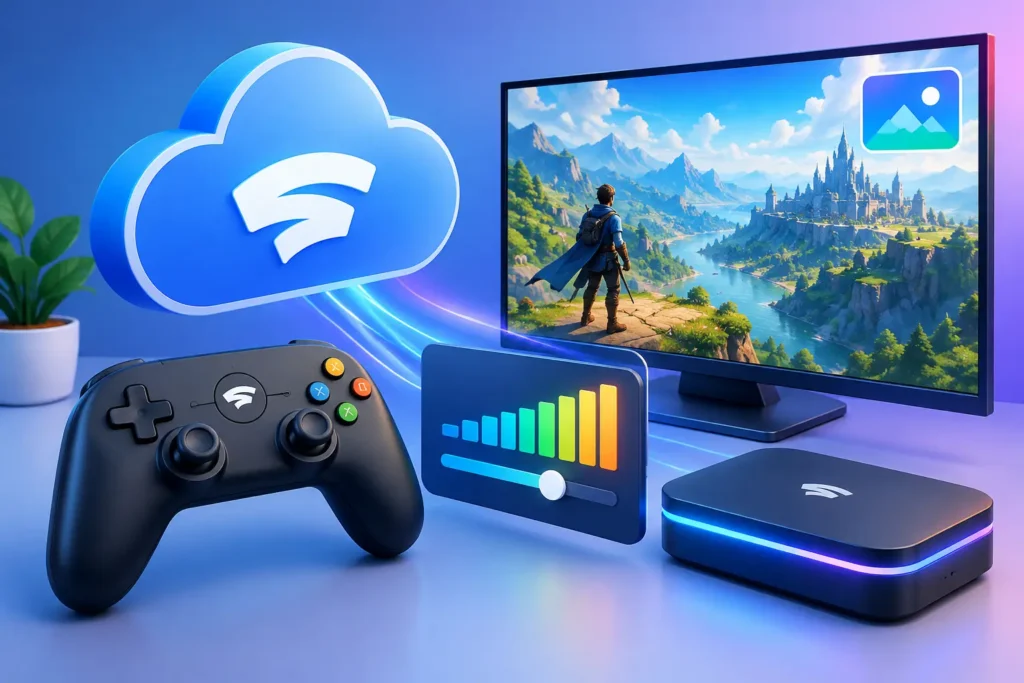
Instead of relying entirely on a local graphics card, the game runs on the remote system. Its output is streamed over the internet, while the player’s keyboard, mouse, and supported controller inputs are transmitted to the cloud computer.
This makes it possible to access stronger remote computing resources from a less powerful local device.
However, cloud gaming is different from simply downloading a game. The experience depends on the quality of the remote hardware, network latency, available bandwidth, streaming technology, and game compatibility.
A full cloud gaming PC can also provide access to a complete desktop environment, allowing users to install compatible game launchers and manage their own gaming setup.
For example, SensePC offers a full Windows 11 cloud PC with GPU-equipped gaming configurations. Steam and Epic Games Launcher are ready on its Xtreme plans, allowing users to sign in with their own accounts and install games they own, subject to compatibility.
Cloud Gaming PC Gratis: Are Free Options Available?
The phrase cloud gaming PC gratis generally refers to finding a way to play PC games through cloud infrastructure without paying the full cost of a gaming computer.
There are several types of offers users may encounter.
Free-Tier Cloud Gaming Services
Some providers offer limited free access to a managed game-streaming service.
Depending on the platform, free access may include restrictions such as:
- Limited session duration.
- Waiting queues.
- Restricted game catalogs.
- Lower streaming quality.
- Daily or monthly usage limits.
- Reduced availability during busy periods.
These services can be useful for trying cloud gaming, but they may not provide a complete desktop environment.
Free Trials and Promotional Credits
Some providers offer promotional credits or introductory access to eligible users.
These promotions can help users test a cloud computing service before paying its regular usage charges.
However, promotional credits are not necessarily equivalent to an unrestricted free cloud PC. They may require an initial payment, account eligibility, or compliance with specific promotional conditions.
Open or Free Software on a Cloud PC
A cloud desktop can also be used with free applications and open-source software.
For example, users may install compatible open-source development tools, browsers, office applications, and other software on a supported cloud operating system.
This can reduce software licensing costs, although the cloud computing infrastructure itself may still be paid.
Understanding the Difference
Before signing up for an offer advertised as free cloud gaming, check whether it provides:
- A complete cloud desktop or only a managed game-streaming interface.
- Access to the games you actually want to play.
- Free usage, promotional credit, or a paid subscription.
- A session limit or usage allowance.
- Persistent storage and any associated charges.
- Restrictions on game launchers and virtualized environments.
A transparent pricing structure is more useful than an attractive free-access claim that hides important limitations.
How SensePC Approaches Cloud Computing Desktop Access
SensePC provides a complete cloud desktop environment rather than limiting users to a single application or fixed game catalog.
Users can create a cloud computer with configurable resources, select an available location, and connect through supported desktop access methods.
The platform is designed for multiple workloads, including:
- Gaming and entertainment.
- Remote desktop computing.
- Software development.
- Creative applications.
- Productivity and office tasks.
- Other workloads that benefit from additional computing resources.
For gaming, SensePC’s Xtreme configurations use NVIDIA L4 graphics with 24 GB of GPU memory. The available CPU, RAM, and storage vary by configuration.
Steam and Epic Games Launcher are ready on Xtreme plans. Users can sign in to their own accounts and install compatible games they own.
This gives users access to a full Windows desktop instead of restricting them to a predefined game catalog.
Does SensePC Offer a Completely Free Cloud Gaming PC?
SensePC does not provide an unrestricted free gaming PC.
Eligible users may receive promotional bonus credit after completing the required first wallet recharge. The promotion is subject to current eligibility rules and account limits.
This is different from a permanently free cloud gaming service.
Users should review the current promotional conditions and pricing before creating a cloud PC. Promotional credit also cannot replace the required main wallet balance for the initial PC creation charge.
For accurate details, consult the official SensePC FAQ.
Choosing the Right Cloud Desktop PC for Gaming
If your main purpose is gaming, evaluate the technical specifications and connection experience before choosing a provider.
GPU Performance
The GPU handles much of the graphics rendering workload in modern PC games.
Check the graphics processor model and available memory, but also evaluate the CPU and RAM.
SensePC’s Xtreme gaming tiers use NVIDIA L4 graphics with 24 GB of GPU memory. Different configurations offer different CPU, memory, and storage resources.
Do not assume that a particular GPU guarantees a specific frame rate across all games. Results vary with game requirements, graphics settings, configuration, and streaming conditions.
Internet Speed and Latency
A cloud gaming computer needs a stable internet connection because it continuously streams audio and video.
Important network factors include:
- Bandwidth: Available capacity for transferring the stream.
- Latency: The time required for input and output data to travel between your device and the remote computer.
- Packet loss: Missing network packets that can interrupt the stream.
- Stability: Consistent connectivity throughout the session.
A high-speed internet package does not automatically guarantee low latency. Server location, network routing, and congestion can all influence responsiveness.
Use Ethernet when possible, or maintain a strong Wi-Fi connection. Choose a suitable cloud region and test the experience before committing to longer sessions.
Persistent Storage
Games and applications can occupy considerable disk space.
A cloud desktop with persistent SSD storage can retain installations, settings, and files between sessions, provided the computer and its storage remain allocated.
Check whether storage is billed separately from compute usage.
For example, SensePC’s Hourly plan stops compute billing when the PC is stopped, but allocated SSD storage continues to incur charges.
Operating System and Compatibility
The operating system affects which games and applications can run.
Windows 11 is relevant for many PC games and launchers, but some titles impose additional restrictions on virtualized environments.
SensePC offers Windows 11 under a Bring Your Own License (BYOL) model. Users must provide an eligible Windows license. Ubuntu 24.04 LTS with a graphical desktop is also available for compatible non-gaming workloads.
Always check the compatibility of your preferred games, especially those using anti-cheat or DRM systems.
Cloud Computing Desktop for Work and Productivity
A cloud desktop PC is not limited to gaming.
A complete remote desktop can provide a consistent computing environment for people who work across different locations or devices.
Remote Work
Users can access a remote workspace containing compatible applications, documents, and settings.
This can be useful when switching between supported computers while maintaining access to the same cloud environment.
Development and Programming
Developers can use a cloud PC to install compatible code editors, programming tools, and development environments.
Depending on the configuration, remote computing resources may also support heavier development workloads.
Creative Computing
GPU-equipped cloud desktops can be useful for compatible graphics and multimedia applications.
Users should compare the software requirements with the available GPU, CPU, memory, and storage before selecting a configuration.
Education and Learning
Students and learners can access compatible desktop applications without necessarily owning a high-performance local computer.
However, educational use should account for software licensing, institutional requirements, network availability, and the cost of cloud resources.
The broader benefit is that one cloud desktop can support different computing activities rather than being dedicated to gaming alone.
Cloud Desktop Pricing: What Should You Compare?
The cost of a cloud desktop depends on the configuration, region, usage plan, and storage requirements.
Some providers charge through recurring subscriptions, while others offer usage-based access.
SensePC offers three main desktop billing options:
Hourly: Designed for flexible or on-demand usage. The Hourly plan has no total uptime limit and supports on-demand CPU and memory resizing.
Daily: Designed for day-based usage, with up to 10 hours of total uptime per day.
Monthly: Designed for longer-term usage, with up to 180 hours of total uptime during the monthly billing cycle.
Before selecting a plan, consider:
- Expected gaming or computing hours.
- CPU, memory, and GPU requirements.
- Persistent SSD storage charges.
- Available regions.
- Included usage limits.
- Game and software licensing costs.
- Promotional eligibility and conditions.
A cloud desktop should be evaluated using its total cost rather than only its advertised compute price.
How to Get Started with a SensePC Cloud Desktop
Getting started involves selecting a suitable configuration and setting up the remote environment.
- Choose your operating system: Select an available Windows or Ubuntu desktop based on your applications and workload.
- Select your hardware: Compare CPU, RAM, GPU, and storage options.
- Choose a location: Select an available region with a suitable network route.
- Select a billing plan: Compare Hourly, Daily, and Monthly options.
- Create your cloud PC: Follow the setup process and review licensing and payment requirements.
- Connect to your desktop: Use a supported browser or the native desktop client where available.
- Install your applications: Set up compatible games, launchers, development tools, or productivity software.
SensePC supports desktop streaming on compatible Windows and macOS desktop or laptop devices. Phones and tablets can access supported dashboard features but cannot currently launch or stream a SensePC session.
For gaming and performance-sensitive workloads, Performance Mode through the native Amazon DCV client is recommended on supported devices.
Final Thoughts
Cloud computing desktops are changing how people access computer resources. Instead of relying entirely on a local machine, users can connect to remote environments that support gaming, productivity, development, and other demanding workloads.
SensePC is an option for users who want a complete cloud desktop with GPU-equipped gaming configurations and flexible usage plans. Review its current pricing, promotional eligibility, operating-system licensing, and game compatibility before choosing a configuration.
The best cloud desktop pc is ultimately the one that matches your workload, connection quality, budget, and expectations without relying on misleading free-access promises.