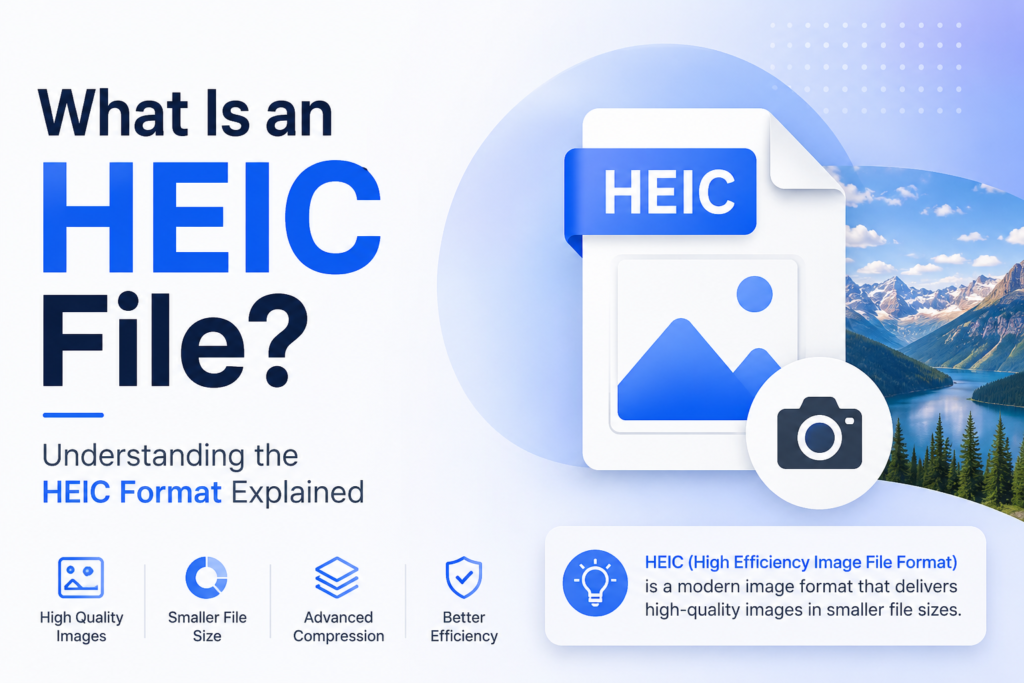
As an iPhone user, the first priority for people is saving storage space, as less space in your account will result in poor performance. It doesn’t matter how massive the storage of your iPhone is; it is not unlimited. Well, Apple has created a solution for all these issues, as all the high-quality pictures on iPhone take up a lot of space, a new image file called HEIC.
This new file format is known to take up less space on your device while ensuring that the quality of the picture remains the same. HEIC files have always been an asset for iPhone users, but they have always been an issue for others. Well, if you are questioning what is HEIC format, then this article will ensure that you have all the information regarding the same.
What is the meaning of HEIC files?
HEIC stands for High-Efficiency Image File, the newer image container thing in Apple that compresses pictures so they take up less room. HEIC photos are on iPhone 7 and newer models, as long as you’re running iOS 11 or a later system. In most cases, you won’t really notice the format, but sometimes you might hit tech trouble while sending photo files from your iPhone over to a computer or cloud storage.
Is HEIC a better option than JPG?
Yeah, in short, it is. HEIC tends to be better than the JPG format. The main reason is that the file footprint is about half of a typical JPG, and on top of that, the picture clarity usually comes out better too. The catch is that HEIC isn’t supported everywhere- not yet, at least. So while the rest of the world catches up, you may have to wrestle with converting HEIC photos into JPGs so some apps can actually use them.
How can you convert HEIC files into JPEG?
Now that you know what is an HEIC file, you should also know how you can save an iPhone photo as a JPEG. If you already took the shot, you usually can’t just flip it to JPG directly on the iPhone itself; you’d need a specific website or a conversion tool.
If you’d rather avoid the whole “convert later” headache, you can change your iPhone settings so it stops using HEIC altogether. Just note, though, you’ll trade away the smaller file size and that nicer image quality for easier compatibility. If you want to stop using HEIC on your iPhone, do this:
- To start the process, you need to access the Settings on your iPhone and look for the Camera application.
- Now, you need to look for the ‘Formats’ section.
- Here, you need to switch from High-Efficiency to Most Compatible.
That’s it. After that, you can keep snapping away while still having an easier time sharing and using your photos. This is the basic information that you need to know about HEIC files. You can also refer to the website Datarecovee to learn more about HEIC images and how you can use them on other devices.